![codaworx-background-transparency (4).png]](https://knowledge.codaworx.com/hs-fs/hubfs/codaworx-background-transparency%20(4).png?height=40&name=codaworx-background-transparency%20(4).png)
Table of Contents
Finding and Verifying Opportunities
Navigating the Application Form
Finding and Verifying Opportunities
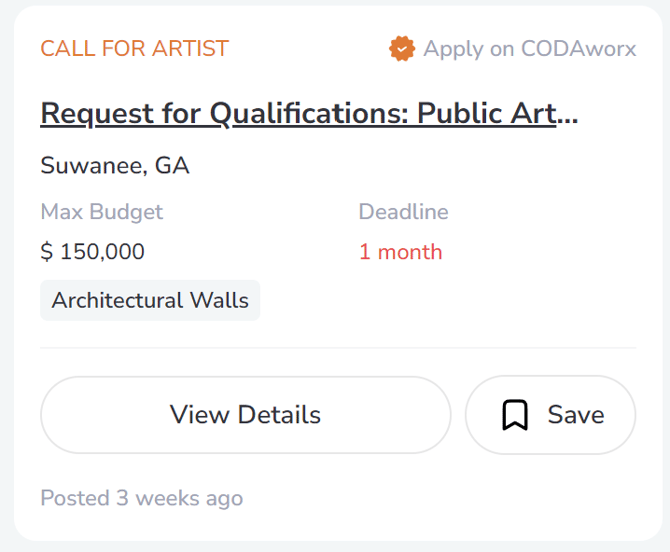
You can find a list of open opportunities on our Open Calls Directory.
There are two types of submissions used by commissioners on CODAworx:
- External Applications: The commissioner uses CODAworx as a listing and requires applicants to apply on an external application.
- Apply on CODAworx: Commissioners use CODAworx’s built in tools and application features to handle the process on our platform. These listings feature an orange checkmark on the upper right hand corner of the posting, with a “Apply on CODAworx” tag.
- Note: If you aren’t ready to apply yet, click the bookmark tag and “Save” the listing for a later date. To view later, Click on your profile in the upper right hand corner. Then, select “My Profile” to see your bookmarks. Ensure to complete the application before the deadline.
Navigating the step-by-step application form
Once you click “Apply on CODAworx” you’ll be directed through our multi-step application. Save your progress at any point by clicking “Save and Exit.”
- Verify Contact Details: Your contact information automatically populates from your CODAworx profile. Review this carefully and manually add or update your phone number, professional job title, email address, and website. Click Save and Continue.
-
- Note: Go to Account Settings to edit the automatically populated profile
- Letter of Interest and Resume: Type or paste your cover letter directly into the text-box. Click the “Upload” button to attach your resume.
-
- Note: Resumes must be in PDF format. After uploading your file, ensure the document has a blue check next to it. If you do not check this box, your resume will fail to attach on your submission.
Questions from Commissioners
Commissioners have the ability to ask questions regarding your application with our membership for commissioners. If this step does not appear for you, you may continue to the next step. Below is an image of what you see if there are no questions involved with the application.
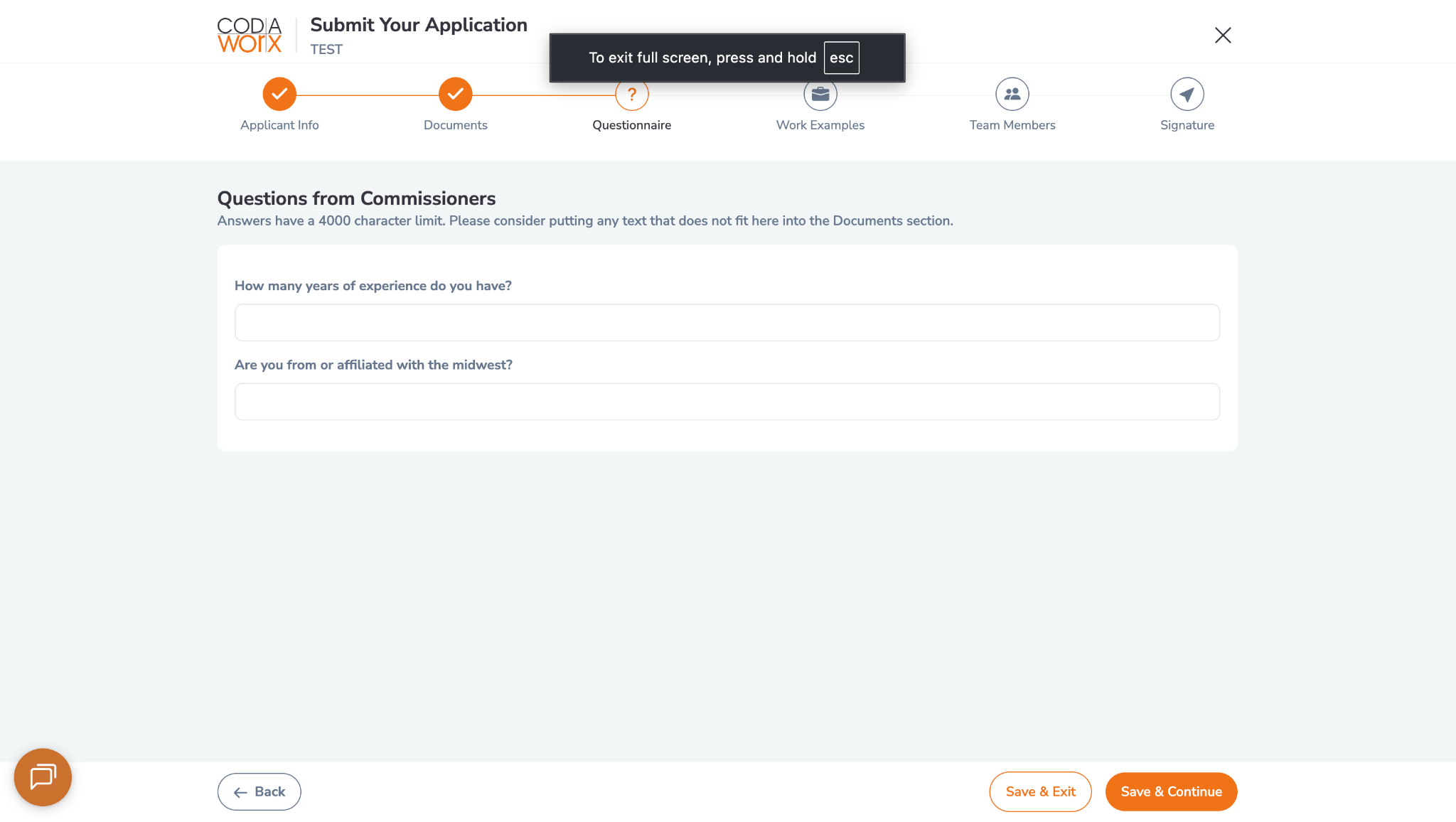
Ensure to answer all questions completely and fully.
Upload Samples of Work
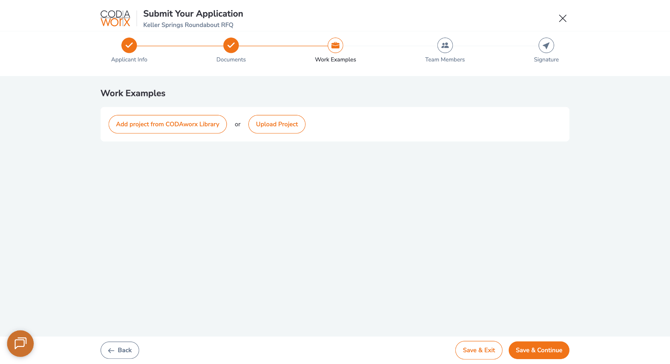
Commissioners have the ability to decide how many work samples they wish to request from artists. Every individual work sample requires:
- Projects title, physical dimensions, budget, location, and completion date.
- Exactly one uploadable image or video.
-
Note: Clicking "Upload Project" saves that sample as a draft project on your personal profile. If you have already built these projects on your CODAworx profile previously, click "Add project from CODAworx Library" instead to instantly pull them into your current application without re-typing details.
- Refer to "How to Publish and Edit a Project" if you wish to change details permanently on a project.
-
Add Team Members (Optional)
If you are collaborating with other artists, fabricators, or engineers on these submissions, search for their CODAworx account in this step to link them directly to this application. If you are applying solo, skip this step.
Legal Attestation
Review your data and check the mandatory confirmation that all statements, projects, and ownership claims are true and accurate. Click “Save and Continue” to proceed to the final review.
Preview and Submit
Before submitting your application, review and make any necessary changes to your application. This is exactly what commissioners will see when they’re reviewing your application.
- To make changes: If you notice a typo, formatting error, or incorrect information, click the "Back" button to navigate to that section without losing your application.
- To submit: Once you’re satisfied with your application, click “Submit Application”
Next Steps
To see your application status, do the following:
- Navigate towards your profile picture in the upper right-hand corner.
- Click on CODAcommission Dashboard
- Select “My Applications” as a page selector near the top of the screen
FAQs
How do I know my application was successfully submitted?
You’ll receive an email from CODAworx thanking you for taking the time to apply. Additionally, you'll be able to see the status of your application on your applications dashboard.